Use Common Laws in Microsoft Word
Find Hong Kong authorities, add OSCOLA-style footnotes and cite-check your draft without leaving Word.
Get it on Microsoft MarketplaceBefore you start
- A Common Laws account on any plan, or a free trial (start one here).
- Microsoft Word for Windows or Mac (Microsoft 365, or a recent desktop version), or Word on the web.
Only what you search for or ask about leaves your document. That’s the text you highlight plus a little surrounding context, or up to about 12,000 characters if you choose to search the whole document. Tables of authorities and unsupported-claim checks run entirely inside Word, and cite-check sends only the citations it finds.
- 1
Get the add-in
From the web: Open Common Laws on Microsoft Marketplace, click Get it now, sign in with your Microsoft account and follow the prompts.
From inside Word: Look under Home, then Add-ins, search for “Common Laws”, choose Common Laws by Neural Motion Limited and click Add. In some older versions of Word, it’s under Insert, then Get Add-ins.
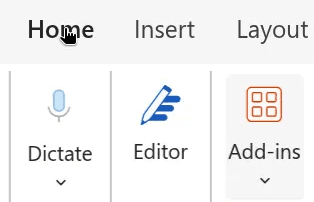
In Word, select Home, then Add-ins. - 2
Open it
On the Home tab, find the Common Laws group and click Search Common Laws. The panel opens on the right of your document.
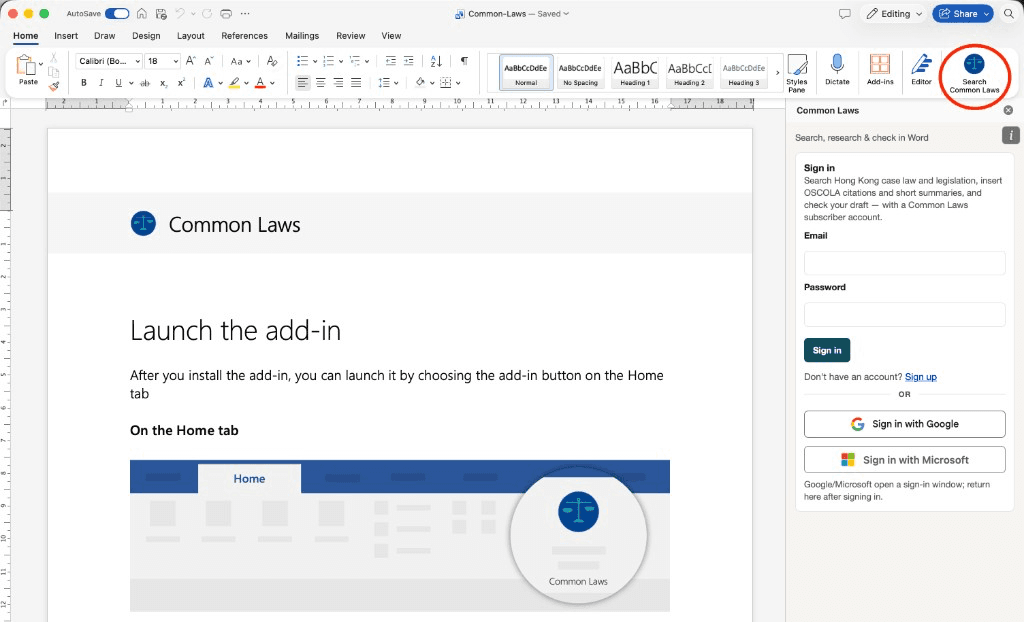
- 3
Sign in
In the panel, sign in with your Common Laws email and password, or with Google or Microsoft if that’s how you signed up. Your Word or Microsoft 365 login won’t sign you in automatically.
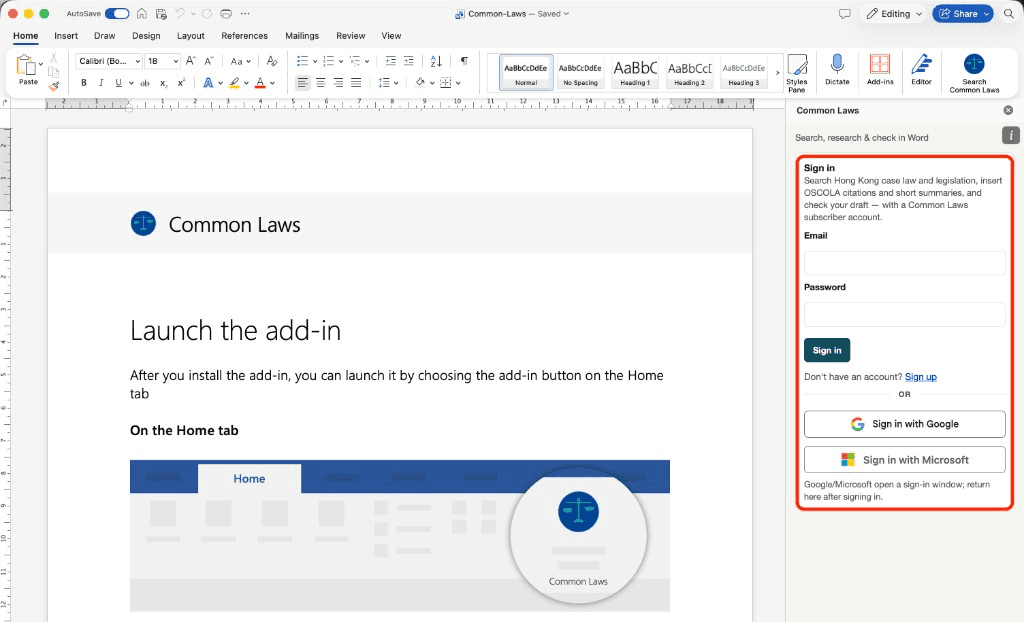
- 4
Put it to work
- Search: Look up Hong Kong cases, legislation and practice directions, and filter by court and year.
- Find authority: Highlight a sentence in your draft and find cases that support it.
- Insert: Add OSCOLA-style footnotes, quotes, statute sections or short case summaries at your cursor.
- Research: Ask a question in the Research tab and get a grounded answer with its sources, then carry the thread on at commonlaws.ai.
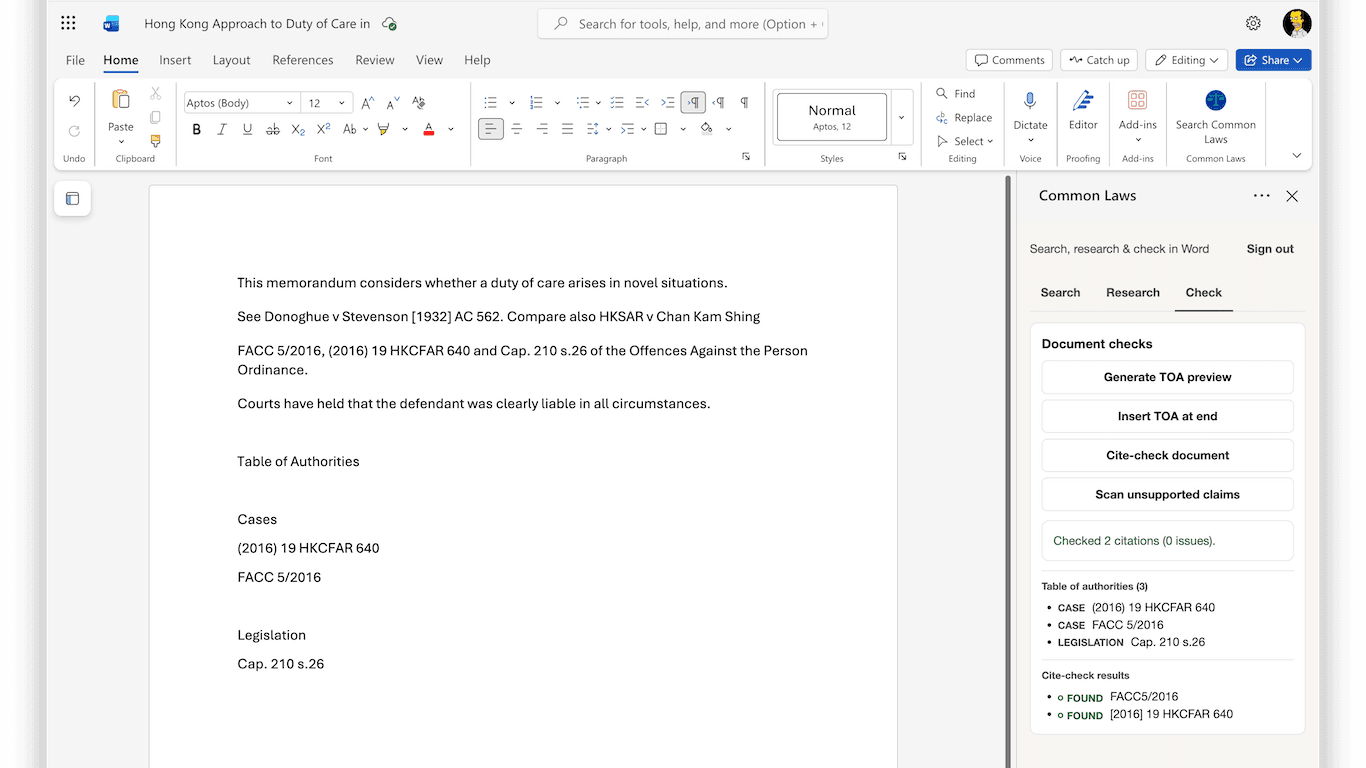
- Check: Build a table of authorities, cite-check your references and flag claims that have no support.
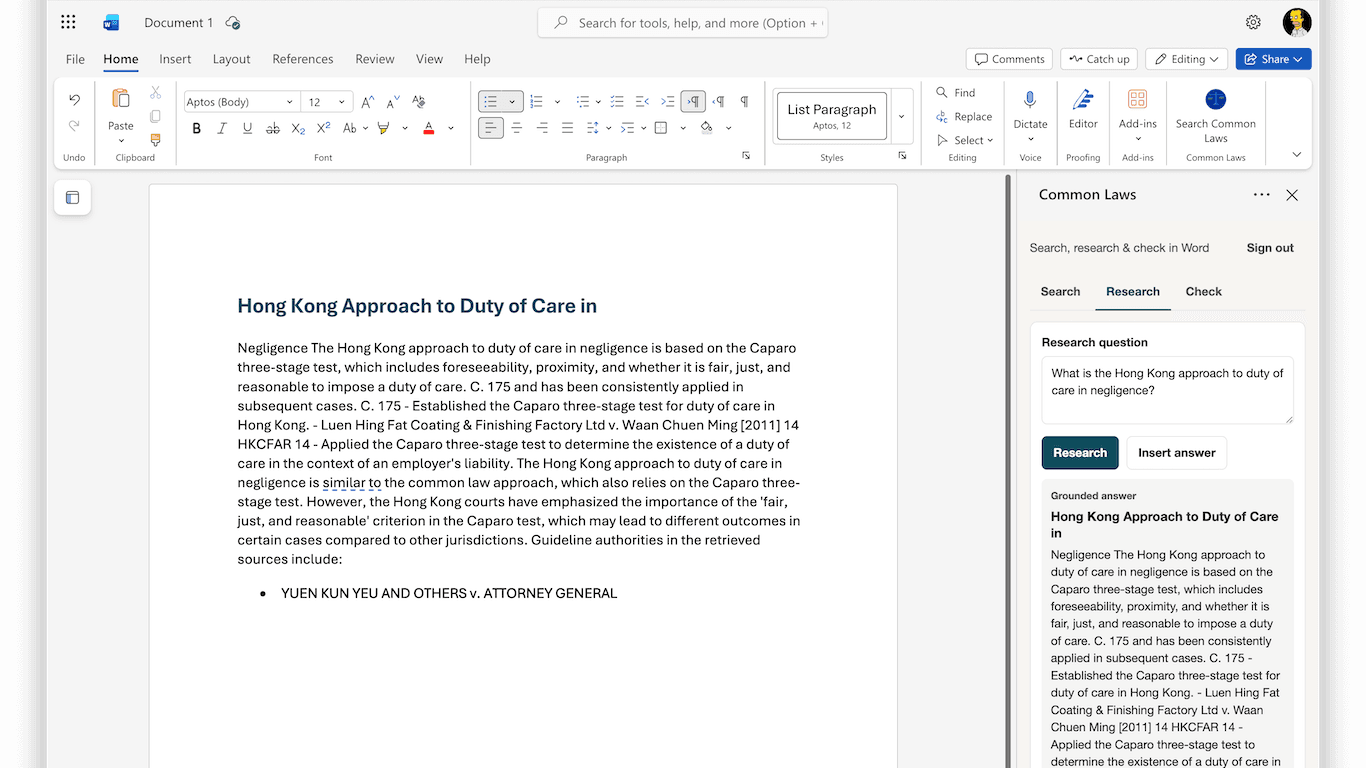
For firms
Your IT team can deploy the add-in to everyone at once from the Microsoft 365 admin center, under Settings, then Integrated apps. Each person still signs in with their own Common Laws account.
Troubleshooting
Can’t see the button? Close and reopen Word, or look under Home, then Add-ins. Still stuck? Contact us.
Seeing “Subscribe to continue” in the panel? You don’t have an active plan or trial right now. Choose a plan to get started.